Best GTA 6 Display Settings for PS5 and PS5 Pro
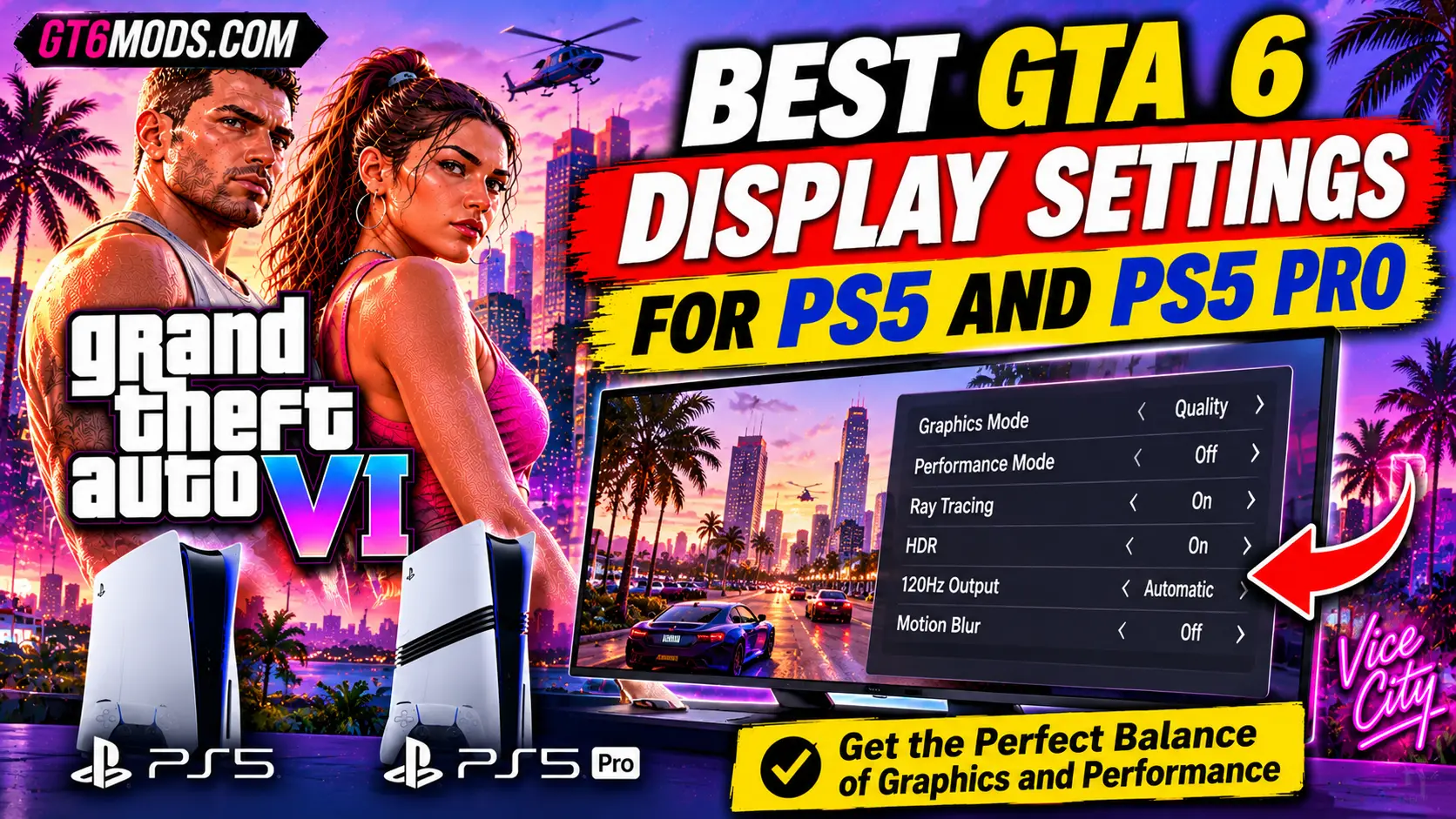
Before launch, set your PS5 to Automatic or 2160p output, turn on HDR (On When Supported) and run Adjust HDR, set VRR to Automatic, and turn on 120 Hz Output if your TV supports it through an HDMI 2.1 port. On the TV, use Game Mode and turn off motion smoothing. The PS5 Pro needs no extra display setting for PSSR or ray-traced shadows. Rockstar has not yet published GTA 6’s in-game video options.
Players searching for the best GTA 6 display settings want one thing: the game to look as good as it can on launch night. There is a lot you can set up today, even before anyone has seen the final options menu.
We will be upfront about what this guide is. It covers console and TV settings that apply to any modern game and that several outlets recommend ahead of GTA 6. It does not describe in-game options, because those are not public and we have not played the game. We checked it against reporting available on November 15, 2026.
What Is and Is Not Known
Knowing the limits helps you avoid chasing myths.
Known:
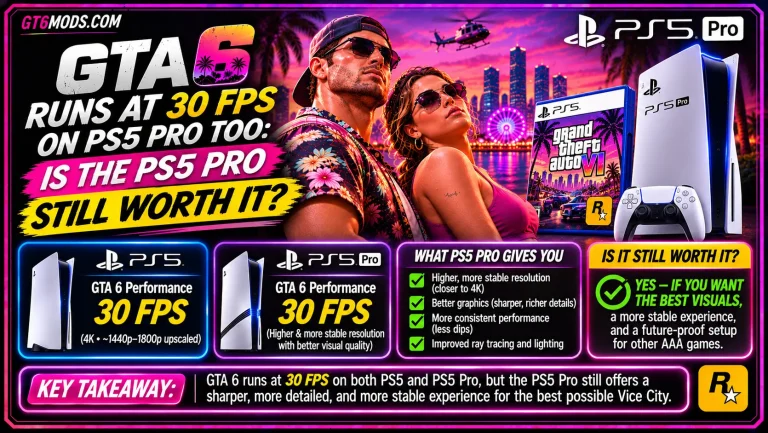
- GTA 6 targets 30 FPS on PS5, PS5 Pro, Xbox Series X and Series S, according to Rockstar’s November 10 announcement.
- The PS5 Pro adds PSSR upscaling and ray-traced shadows. Our guide to GTA 6 PS5 Pro features explains both.
- The PS5 version supports DualSense haptics and Tempest 3D Audio.
- Digital Foundry’s analysis of Rockstar’s footage found around 1440p internal resolution, upscaled to 4K. See our article on what Digital Foundry has found so far.
Not known:
- the in-game video options and any performance or quality modes
- how HDR is implemented
- whether and how GTA 6 uses variable refresh rate
- the exact resolution on each console
Several guides point out that the PS5 settings below show what your console can send to your TV. They do not confirm what GTA 6 will do with them.
PS5 Settings to Check Before Launch
Most of these are under Settings, then Screen and Video, then Video Output. Menu names can shift slightly with system updates, so check your own console.
- Resolution: Automatic or 2160p. If your TV is 4K, let the console pick Automatic or choose 2160p. This lets the game output its best image.
- HDR: On When Supported. This keeps games that do not support HDR in standard dynamic range, while giving HDR games the full range. Engadget says Always On also works. Make sure HDR is enabled on the TV for the HDMI input your PS5 uses.
- Adjust HDR. Run the three-step calibration in the same menu. This matters for a game that moves from dark nightclubs to bright Florida sun, sometimes within one mission.
- VRR: Automatic. Variable refresh rate matches your screen to the game’s frame rate and can reduce tearing. Your TV needs to support it, usually through HDMI 2.1.
- Apply to Unsupported Games. Engadget notes this option is in the VRR menu, and Sony says it can help stabilize frame rate in games that do not support VRR natively.
- 120 Hz Output: Automatic. Only available on a TV with an HDMI 2.1 input. See the next section for why it can still help a 30 FPS game.
- Automatic low latency mode (ALLM). If your TV supports it, it switches to game mode for you. Check that it is on.
If you want a quick refresher on getting the game ready before launch, our guide on how to preload GTA 6 covers storage and setup.
Extra Notes for PS5 Pro Owners
The PS5 Pro does not have a special display menu for GTA 6.
- PSSR and ray-traced shadows are part of the Pro version, and Rockstar has not described any toggle for them.
- The same display settings apply. HDR, VRR, 120 Hz and resolution work exactly as on the standard PS5.
- Game presets. Some guides suggest setting the PS5’s default game preset to Performance Mode. Since Rockstar has announced only a 30 FPS target and no modes, that setting is unlikely to change anything in GTA 6. It does no harm for other games.
In short, the Pro’s advantage is built into the game, not hiding in your settings.
TV Settings That Matter
Your TV often makes a bigger difference than any console setting.
- Turn on Game Mode. It lowers input lag, which makes controls feel more responsive.
- Turn off motion smoothing. Features that add extra frames can add delay and give an odd look. Names vary, such as motion interpolation or soap opera effect.
- Use an HDMI 2.1 port. Not every port on a TV supports 4K at 120 Hz. Check your TV’s manual, and make sure the port is set to its enhanced or full format if the TV has that option.
- Enable HDR on that input. The PS5 uses HDR10, so Dolby Vision is not needed for PlayStation.
- Enable VRR and ALLM in the TV’s game settings if they are not automatic.
- Keep sharpening low. High sharpness can add halos and worsen shimmer on fine detail.
- Check the picture mode. Pick the game or HDR game picture mode and calibrate from there.
These are general tips for any console game, not GTA 6 test results.
Does 120 Hz Help a 30 FPS Game?
It is a fair question. The 120 Hz output setting controls what your console sends to your TV, not how fast the game runs. GTA 6 will not run at 120 FPS because you turn it on.
Still, Engadget points out that 30 FPS fits evenly into a 120 Hz signal, with each frame held for four refreshes. That can keep motion looking consistent. Both PS5 and Xbox Series consoles top out at 120 Hz, so you do not need a 144 Hz or 165 Hz TV for console gaming.
Our article on whether GTA 6 30 FPS will feel smooth explains what else affects smoothness.
If Something Looks Wrong
A few common problems have simple fixes.
- Washed out or too dark HDR. Run Adjust HDR again, and check that the TV is in its HDR game mode.
- A setting is grayed out. Some TV controls are unavailable while HDR is active. Check the TV’s manual.
- Flicker with VRR. Some owners report brightness flicker with VRR on certain OLED TVs in dark scenes. If you notice it, try turning VRR off for the game and compare.
- Input lag. Check that Game Mode is on and that motion smoothing is off.
- Black bars or wrong resolution. Set resolution back to Automatic.
If a setting seems to make things worse, change one thing at a time so you can tell what helped.
In-Game Options to Look For After Launch
Once the game is out, look for these in its video and display menus. Whether they exist is not yet confirmed.
- a brightness or HDR calibration screen
- any performance, quality or frame rate option
- motion blur and camera shake controls
- field of view or camera distance
- subtitle and interface size
We will add a verified list after we have played the game.
Do You Need a New TV?
No. Rockstar has not published any TV requirement. A 4K TV with HDR, HDMI 2.1, VRR and a 120 Hz panel is a sensible setup for current consoles, but it is not a confirmed GTA 6 requirement. Reports note that claims you need a specific TV to run GTA 6 are speculation. This is a personal spending decision, so check prices and reviews before buying anything.
What About Xbox?
Xbox Series X and Series S use different menus, under TV and display options, and have their own HDR calibration. We cover Xbox separately. Rockstar’s 30 FPS target applies to both consoles.
Other Terms You Will See
These terms all describe parts of the same setup:
- HDR10, HDR calibration, tone mapping: how bright and dark areas are displayed.
- VRR, variable refresh rate, adaptive sync: matching the screen to the game’s frame rate.
- ALLM, game mode, low latency mode: reducing input delay.
- 120 Hz output, refresh rate: what the console sends to the TV.
- Motion smoothing, interpolation: a TV feature to turn off for games.
Key Takeaways
- The best pre-launch settings are system and TV settings, because GTA 6’s in-game options are not public.
- Use Automatic or 2160p, HDR On When Supported, Adjust HDR, VRR Automatic and 120 Hz Output if your TV allows it.
- Use your TV’s Game Mode and turn off motion smoothing.
- The PS5 Pro adds PSSR and ray-traced shadows, with no extra display setting needed.
- GTA 6 targets 30 FPS, and 120 Hz output does not change that.
The Bottom Line on GTA 6 Display Settings
The best GTA 6 display settings you can set today are the ones that make your PS5 and TV work together properly: correct resolution, calibrated HDR, VRR where supported and a low-latency game mode. They will not make the game run faster, but they will help it look and respond better.
We will update this page after launch with the real in-game options and any settings that make a difference.